I was trying to debug RDP class yesterday but I tried all the steps a provided and listed on MSDN with no luck. Eventually what I changed was to replace SrsReportDataProviderBase with SrsReportDataProviderPreProcess after the extends keyword it gave me the right result but there is still a limitation for this workaround that we cannot view the report. Hope this small blog post can save your day as well. There are still more steps we can follow to view the report as provided in this post.
Monday, December 14, 2015

Monday, November 2, 2015
How to fetch number of records in datasource in Dynamics AX
I am going to share through post that sometimes we need to retrieve the number of records in a particular datasource. Let's say we have two datasources in a form named Student and StudentCourseEnrollment.
 I simply need to fetch the number of records in Student Datasource in the init event of the the form. I would require following peace of code for that.
public void init()
{
QueryRun queryRun;
super();
queryRun = new QueryRun(Student_ds.query());
info(strfmt("Total Records in Student Datasource %1",SysQuery::countTotal(queryRun)));
}
Further you can refer this post to retrieve the rows from the temporary data source as well.

public void init()
{
QueryRun queryRun;
super();
queryRun = new QueryRun(Student_ds.query());
info(strfmt("Total Records in Student Datasource %1",SysQuery::countTotal(queryRun)));
}
Further you can refer this post to retrieve the rows from the temporary data source as well.
Tuesday, September 29, 2015
Lookup by referrence field
Guys! In AX 2012, we could add the lookup in the form by reference
field. For that It is necessary to understand the relations of tables.
As we know relations between tables are used to associate rows in one
table to rows in another table. In AX relationship between tables are
defined within the MS Dynamics AX application and not at the physical
database level. There are different sorts of relations. To get more
detail visit the MSDN about How to Add a relation to a Table.
Lets say we have different categories of Items for storing in the inventory. I want to see specific category of items to be displayed in my lookup on inventory receiving form.
Start with adding relation in the inventory receiving table with items table. You can modify the relation according to your need. For showing the fruit category I have used related field fixed relation too.


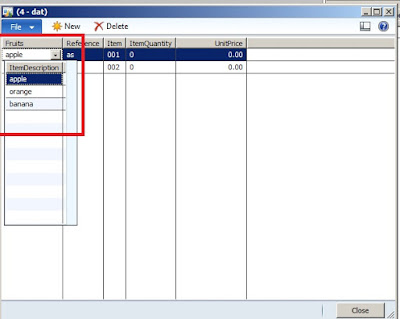
This was small post to show you how the lookups can be added in the forms by reference field group field.
Lets say we have different categories of Items for storing in the inventory. I want to see specific category of items to be displayed in my lookup on inventory receiving form.
Start with adding relation in the inventory receiving table with items table. You can modify the relation according to your need. For showing the fruit category I have used related field fixed relation too.

There must be field group defined in Items table

Now add the reference group as new control in the grid container of the
form and set the DataSource, ReferenceField and ReplacementGroupField
Properties.
Here we go! You can only see the fruits category in this look up.

Subscribe to:
Posts (Atom)